Table of Contents
Windows VirtuaBox
Because even here, in Linux haven, you are not safe from the clutches of the Microsoft Empire…
Installing A Pre-Built Windows 7 VirtualBox
TODO
Using Your Windows 7 VirtualBox
TODO
Backing Up Your Windows 7 VirtualBox
Installation
- Start your Windows 7 VirtualBox
NOTE: The remaining steps are to be taken from within Windows - Open your browser of choice (Explorer, Firefix, Chrome, etc.)
- Download and install CobianSoft's Cobian Backup (free): http://www.nimbios.org/help-files/cbSetup.exe
(Or from the official homepage: http://www.educ.umu.se/~cobian/cobianbackup.htm) - Run:
dbSetup.exe
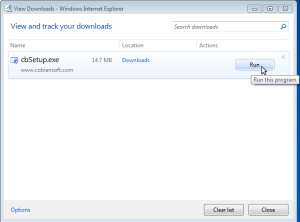
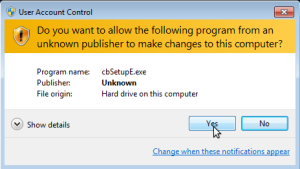
- If prompted, click
Yesto allowcbSetup.exeto run
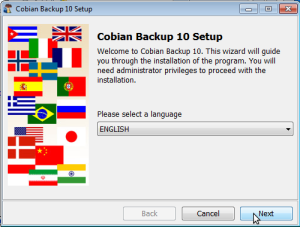
- Please select a language:
ENGLISH
Click:Next
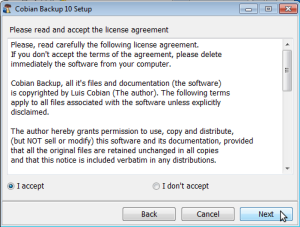
- Select:
I accept
Click:Next
- Click:
Next
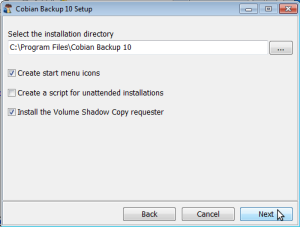
- Select:
Application (auto-start for everyone)
Click:Next
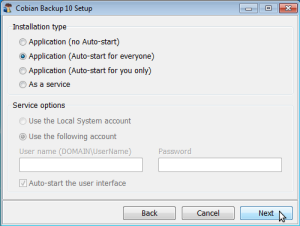
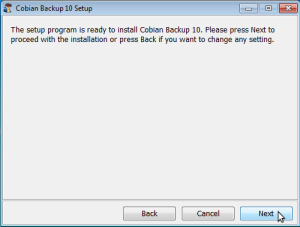
- Click:
Next
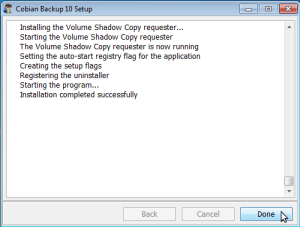
- Click:
Done


Configuration
IMPORTANT NOTE: The instructions given here assume that you have exactly one Windows virtual machine (vm), and that this one vm will be backed up to the directory ~/Windows_Backup/ in your Linux home area. Some users have multiple Windows vm's. If you are one of these users, and you wish to back up more than one virtual machine, create a separate directory under ~/Windows_Backup/ to house the backups from each of your different virtual machines. Ex: ~/Windows_Backup/WinXP/, ~/Windows_Backup/Win7, ~/Windows_Backup/Win7-OLD, etc. This way the backups of your different virtual machines are kept separate and nothing is accidentally deleted or overwritten.
- On Linux, open a terminal and type the following commands:
- Type:
mkdir ~/Documents/Windows_Backup
This will create the directory in which your Windows backups will be placed - Type:
chmod 0700 ~/Documents/Windows_Backup
This will secure the directory by setting permissions such that only you may enter the directory or see it's contents
- In your Windows VirtualBox:
- Open the Cobain Backup control panel by clicking on the icon in the system tray.
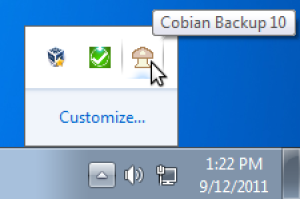
- Click on
Create a New Task
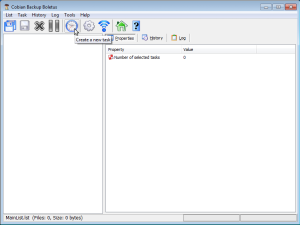
- Under
General:
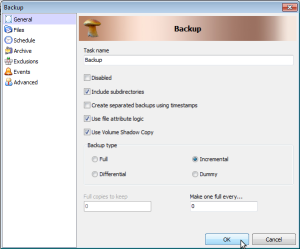
- Task name:
Backup - Uncheck:
Create separated backups using timestamps - Check:
Use Volume Shadow Copy - Backup type:
Incremental
- Under
Files:- Under
Source, click:Add, thenDirectoryin the pop-up menu that appears
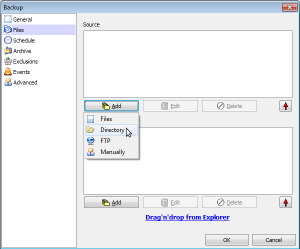
- Select your user directory
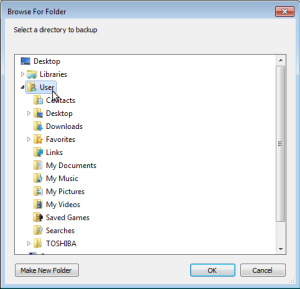
(In this example, the user directory is named “User”, your actual user directory may be named differently.) - Under
Destination, clickAdd, thenManuallyin the pop-up menu that appears
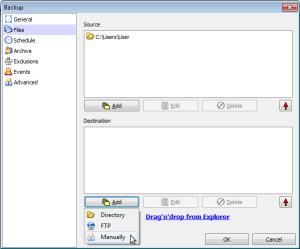
- Click:
OK
- Under
Schedule:
- Select how often you would like Cobain Backup to back up your files, and click
OK
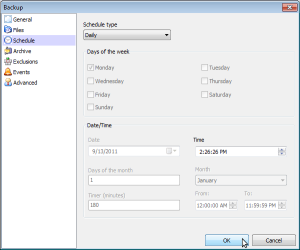
(The default is once daily. This is the suggested schedule, unless you have a legitimate reason to change this setting.) - Click:
OK
- Check your work:
- In your virtual machine:
- Open the Cobain Backup control panel, select
Backupfrom the task list, and clickRun the Selected Tasks
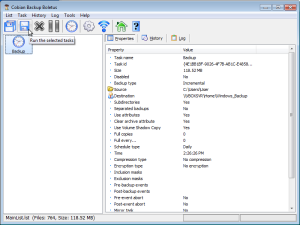
- Click:
OK
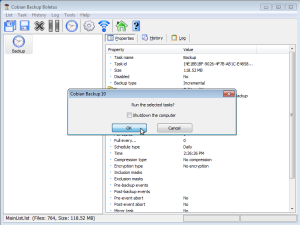
- You will see Cobain Backup do it's thing, and log it's activities
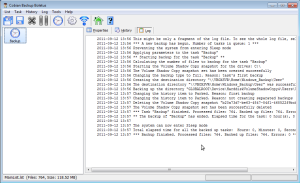
- From Linux:
- Open a Nautilus file window and navigate to your
~/Windows_Backupdirctory
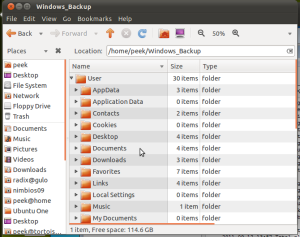
You should see all of your files here


Snapshots
TODO