
data_recovery
This is an old revision of the document!
Table of Contents
Disk Information
Handy commands:
- lsblk – Lists all attached drives, including partitions
Ex:lsblk
- udevadm – Gives detailed information about a drive
Ex:udevadm info --query=all --name=/dev/sd<X> | grep ID_SERIAL_SHORT
Disk Testing
Handy Commands:
- Checking a drive's SMART attributes:
- GUI:
- Install gnome-disk-utility (If not already installed)
apt-get install gnome-disk-utility
- Run:
gnome-disks
- Select your drive and then select the menu button in the top-right corner:
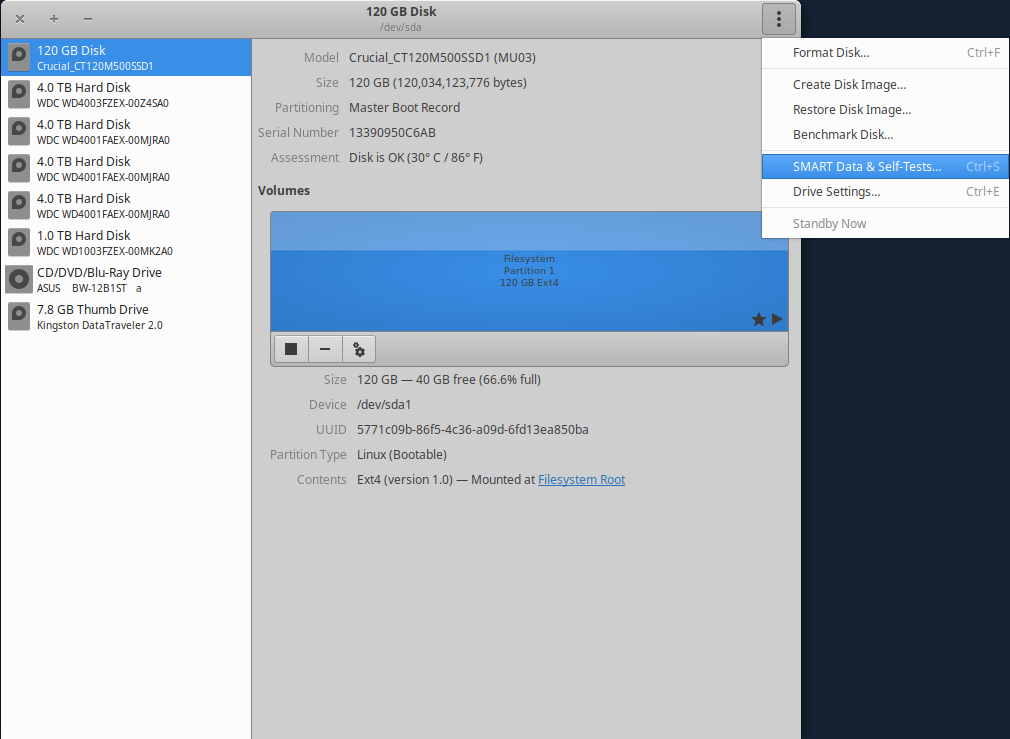
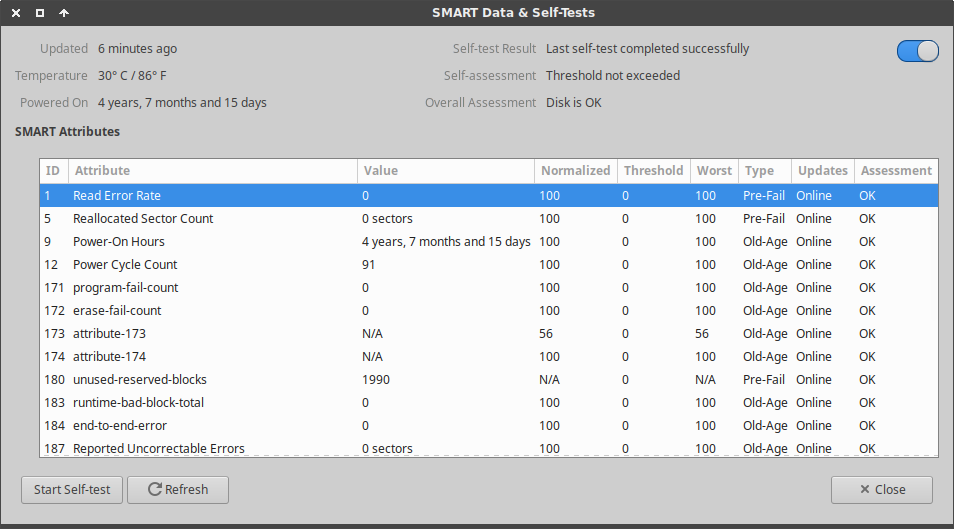
- Command Line:
- Install smartmontools
apt-get install smartmontools
- Overall health report:
smartctl -H /dev/sd<X>
- Detailed SMART information:
smartctl -i /dev/sd<X>
- Running SMART tests (non-destructive to data)
- GUI:
gnome-disks
Open “SMART Data & Self-Tests”, click “Start Self-Test”, and select a test to run. - Command Line:
smartctl --test=short /dev/sd<X>
smartctl --test=long /dev/sd<X>
- Thoroughly Testing Drive Media (CAUTION: DESTRUCTIVE TO DATA)
badblocks -vws /dev/sd<X>


Data Recovery
data_recovery.1534952223.txt.gz · Last modified: 2018/08/22 15:37 by peek
Except where otherwise noted, content on this wiki is licensed under the following license: CC Attribution-Share Alike 4.0 International


