
This is an old revision of the document!
Table of Contents
What Is A Terminal? What Is A Shell?
In The Beginning...
“In the beginning there was the shell, and lo, it was good…”

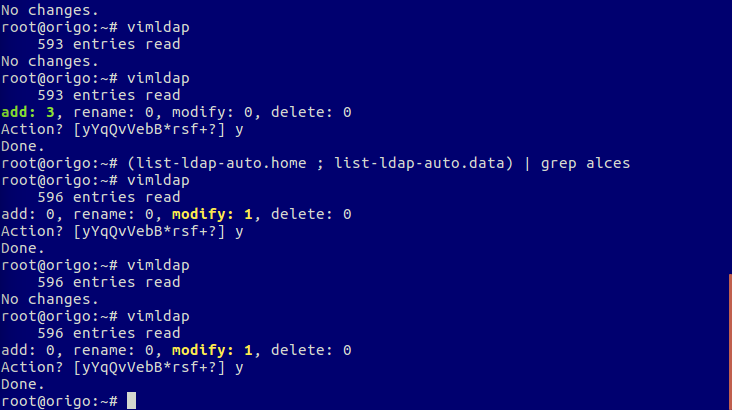
An 80×24 matrix of blurry green characters with a keyboard, it was pure 1970's sexy. No mouse, no graphics, just pure, unadulterated power. Microsoft and Apple would have you believe that a command line is something to be feared and avoided. Feared, yes, and rightly so, for there is great power in the command line; more than you will find in any GUI interface any day of the week. And with great power comes great responsibility… But for those knowledgeable in the ways of command-line-foo there is no going back.
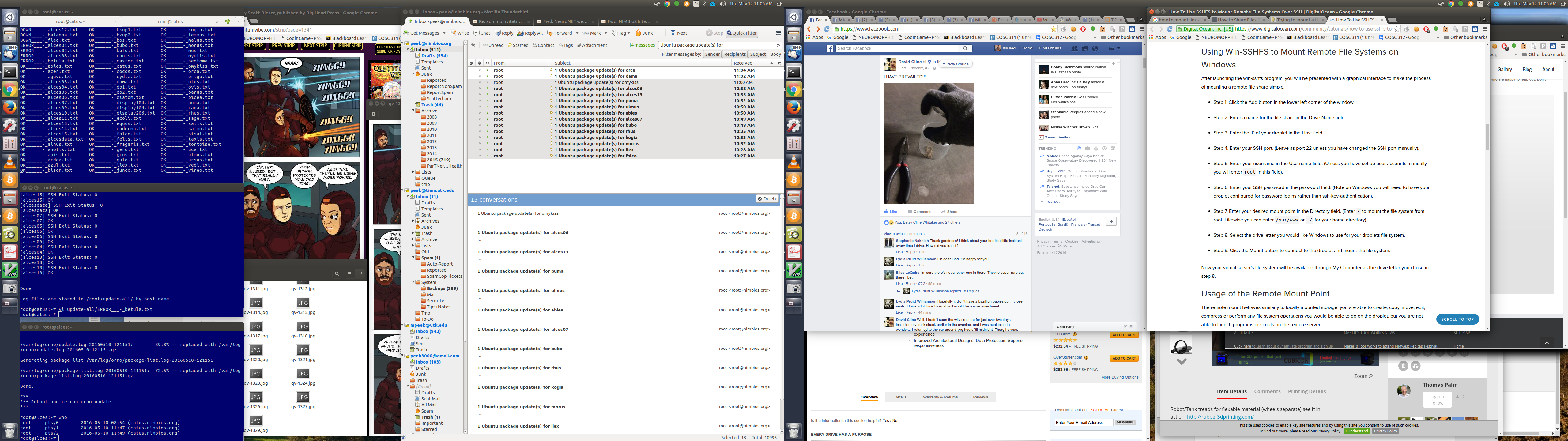
Today, we have computers that are so powerful that we often run dozens of programs simultaneously, while the operating system runs a hundred or more in the background, and then we complain about how slow the machine is! In fact, in many ways, today's world has left the humble shell behind. Preferring instead to focus on giving us simultaneous access to our dozens of programs through a sleek, modern, graphical user interface (GUI).
Old And Busted:
New Hotness:
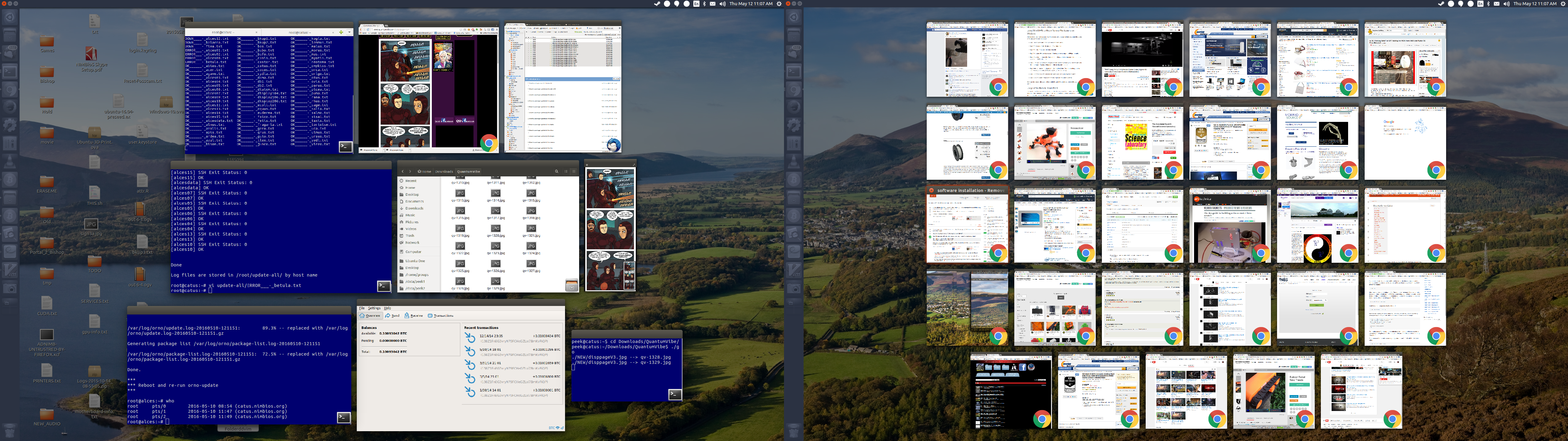
Q: How many windows do I actually have open on my desktop right now?
A:
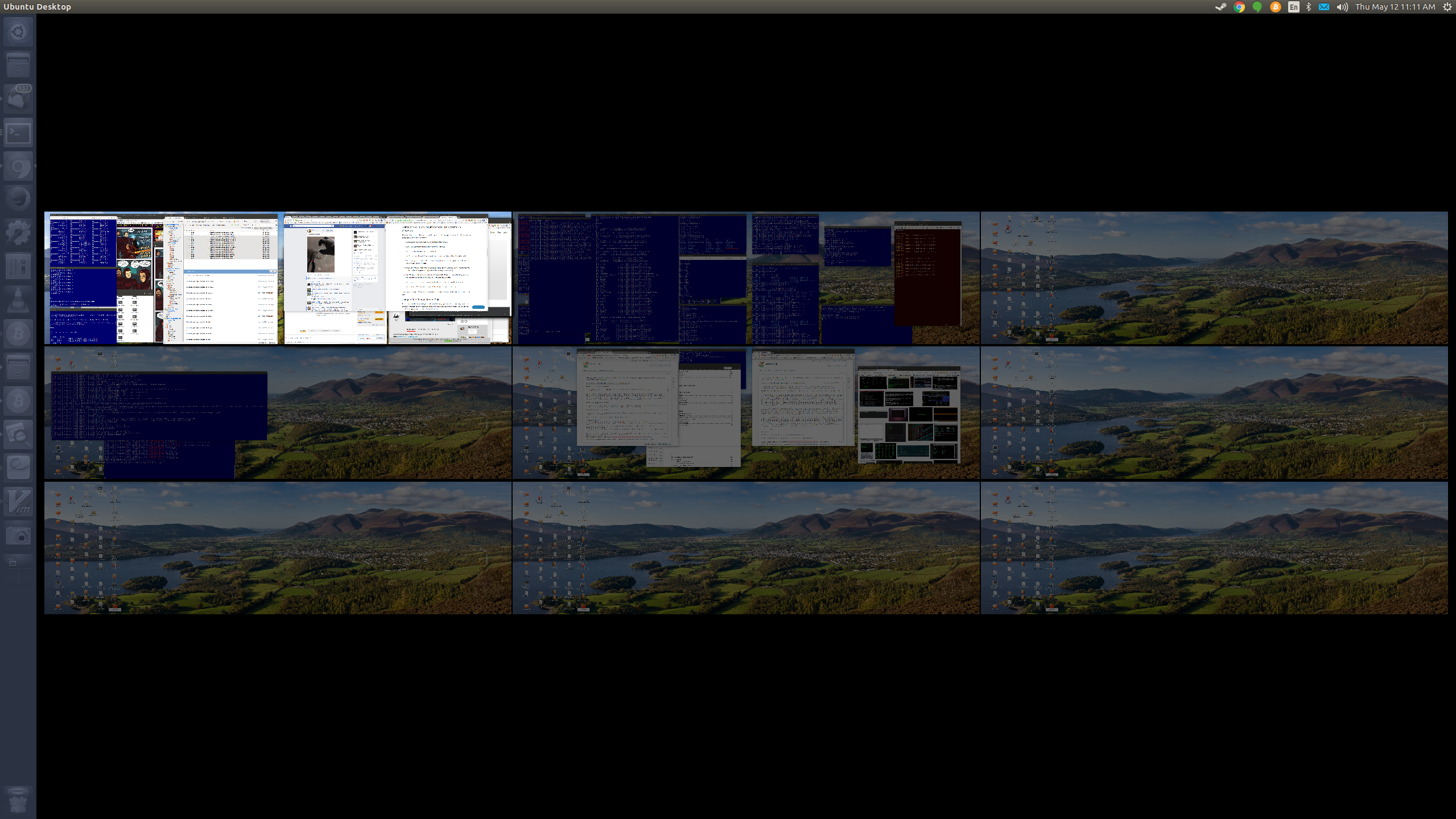
…And that's just the current desktop! I have multiple virtual desktops!
Why Should I Bother?
“But why,” I hear you say, “is any of this 1970's garbage relevant today, now that we have all of this flash-bang graphical GUI stuff?”
The answer is simple: Because…
- It's still the most powerful interface in the world
- When you log into a machine remotely from off-site, particularly a server of some kind, the shell is what you will interacting with
- All that flash-bang GUI stuff? Yeah, that stuff runs on top off the a stack of shells!
- A single shell can allow you to automate your workflow in ways that GUI interfaces cannot and never will – work smarter, not harder!
So this is something of which you should at least know the basics, and that's what this tutorial is all about.
- The shell is a special program that interacts with the user. It's job is to wait for the user to type in a command. When a command is received (the user pressed RETURN), the shell executes that command, updates it's internal state accordingly, and waits for the next command.
- Instead of entering commands manually, a user may decide to place commands into a file. The shell can execute the commands listed within the file just as though they were typed in by a user. This, and the modular nature of UNIX command line programs, is the key to the true power of UNIX: Enabling the user to automate their workflow in ways that simply can't be done with a GUI. Files that hold commands for a shell are called shell scripts, or just scripts for short.
- In today's highly-graphical user environment, the terminal is just another graphical program whose job it is to provide a window on the screen inside of which the shell can run and interact with the user.
Jumping Right In
Accessing The Shell
If you are using a computer without a graphical user interface, then congratulations, you're looking at a shell environment – that, or a text-based login prompt that will take you to a shell environment.
If you're in a graphical desktop, then search for an application named “terminal”. There are many ways to do this depending on your operating system:
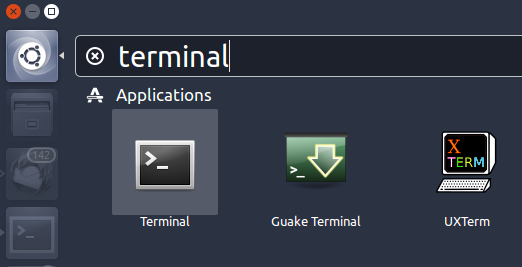
- If you're using Ubuntu's Unity desktop, then press the “Super” key (a.k.a. the “Windows” key on PC keyboards, or the “Command” key on Apple keyboards). Then type “terminal” into the dash search bar. The terminal should be the first application listed in the search results below the search bar.
- If you're using Gnome desktop


