
This is an old revision of the document!
Table of Contents
NIMBioS' Ubuntu-18.04 Operating Environment Introduction
This document is a quick introduction and walk-through of the NIMBioS working environment, which is based on the Ubuntu 18.04 distribution of Linux. This guide will introduce you to some of the basics of using a NIMBioS workstation.
IMPORTANT NOTE
DO NOT SHUT DOWN, POWER OFF, REBOOT, OR UNPLUG (from neither network nor power) A LINUX WORKSTATION.
- The IT staff may be working behind the scenes to push out system updates and/or configuration changes. Interrupting the machine during this process will interrupt their work. This makes for unhappy IT staff.
- There may be other users logged in remotely, and who are working on important projects in the background. Interrupting the machine will interrupt their work. In some cases, days of computational research may have to be restarted. This makes for unhappy users.
- An integrated, enterprise-level computing environment works best when all the pieces fit together. Interrupting the machine will make the other machines miss their friend. This makes for unhappy machines.
Any interruption to the normal operating state of a Linux workstation is unacceptable. In the event that your workstation should become unresponsive or otherwise unusable, the proper response from the user is to seek assistance from the IT staff.
Logging In
When you first sit down in front of a NIMBioS Linux workstation you will be presented with a login screen that looks like this:

Type in your username in the top box, and your password in the bottom box, and then click “Log In”.

A Quick Tour
This is what your desktop looks like:

The desktop environment is categorized by three main components: The background, the icons on the desktop, and the panel located at the top of the screen. This layout should be familiar to you from other operating systems.
Working our way around the desktop, starting in the top right corner:
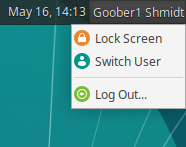
- Action Buttons: This is the name of the application that currently displays your username. If you click on it, you are given the options of logging out, locking your screen, or switching the screen to another user.
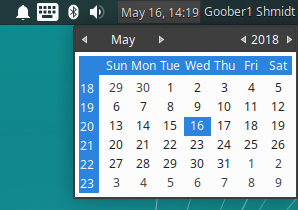
- Clock: This application displays the current time and date. It's configurable. If you click on it with the left button, it will show you a calendar for the current month.
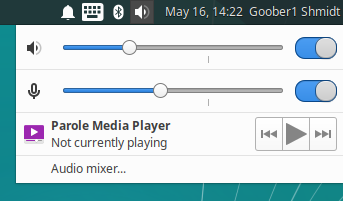
- PulseAudio Control: This application allows you to control the volume of speakers, microphones, and headphones, as well as controlling source and sink devices between which audio data is allowed to travel. Left-clicking on the icon will display a simple pull-down menu.
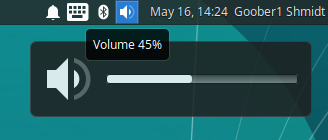
You can also just hover your mouse over the icon and twist the roller on your mouse, and the volume level will respond accordingly.
For more detailed control over your audio devices, left-click on the icon and select “Audio mixer…”.
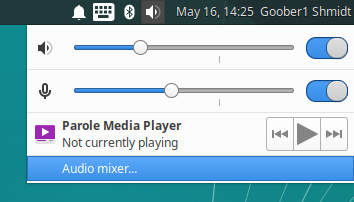
You will be greeted with a mixer control panel from which you can do more.
- Various System Notification Icons: This area is very similar to the Windows system tray. As you start some programs, they may add new icons to this area.

- Window Buttons: The long section in the middle of the panel is reserved for this application, which displays a new button for every GUI program that you start.

As you open more programs, more buttons will appear.
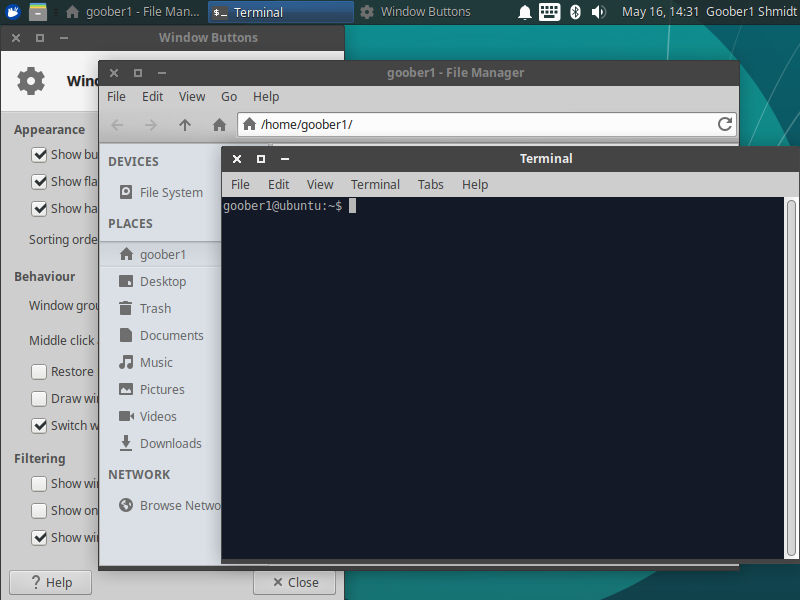
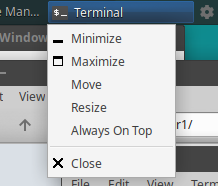
By left-clicking on a button, the program window it represents will toggle between minimized and visible. By right-clicking on a button you are presented with a drop-down menu of choices.
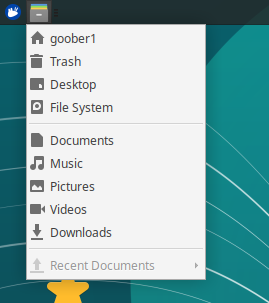
- Places: This application allows you to pull up a file manager window.
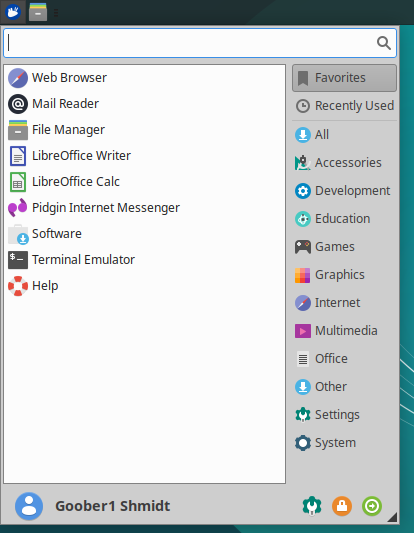
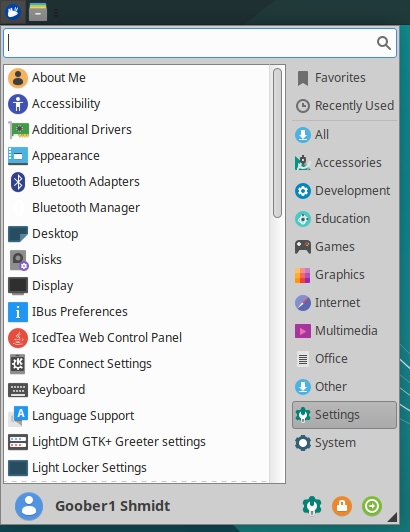
- Whisker Menu: This application replaces what was formerly called the dashboard on older versions of Ubuntu that used the Unity desktop. Clicking on this will show you a menu where you can search for GUI programs.
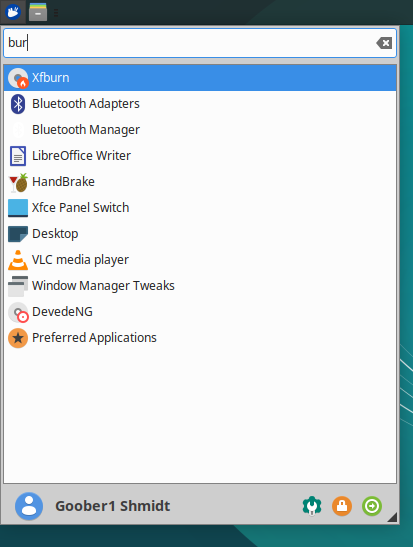
The search bar at the top acts just like the search bar on the old Unity dash – you start typing the name of the application that you're looking for, or a description of what you want to do, and search results show up in the lower left panel. For instance, if I want to burn some files to a CD or DVD, but I don't know what the appropriate application is to do that with, then I can start typing b-u-r- into the search bar, and “Xfburn” pops up as the first result.
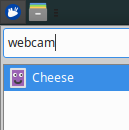
Likewise, if I type “webcam”, the application “Cheese” comes up, which is an application that allows me to use a camera to take pictures and video.
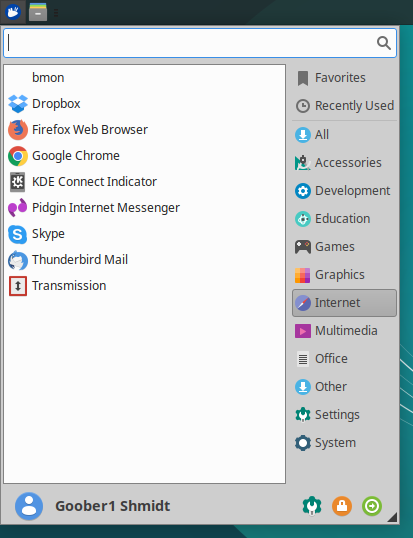
The panel on the right contains buttons representing various application categories. If I want to see all of the GUI applications on the system that are associated with the “Internet” cagetory, then all I have to do is click on it and the left panel will update accordingly.
Under “Settings” you will find all sorts of applications for helping you customize your desktop environment to suit your particular needs.
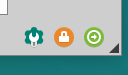
Finally, in the lower right corner of the menu you have icons that allow you to access system settings, lock your screen, or log out.
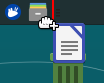
- You can add icons to the desktop by dragging them and dropping them onto the desktop wherever you want to place them.
- You can add icons to the panel by dragging them and dropping them onto the panel wherever you want to place them. You will see a red bar appear on the panel where the panel thinks that you want the icon to appear.
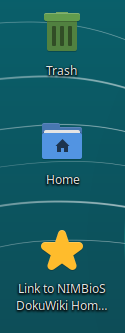
- Desktop Icons: These are probably pretty self-explanatory. There's the trash icon, an icon that opens a file manager pointed to the location of your home area, and an icon that brings you to the help pages of NIMBioS (where you are now).


Window Management
- Window controls are very similar to other operating systems.

The “X” closes the window. The box maximizes the window. And the “-” minimizes the window.
- Moving a window can be done by clicking on the title bar and dragging the window, or by holding down the “Alt” key, clicking anywhere on the window, and then dragging it.
- Resizing a window can be done by clicking on an edge or corner and dragging, or by holding down the “Alt” key, clicking anywhere on the window, and then dragging.
- If you use a program that wants to capture the “Alt” key for it's own purposes then you can remap which key activates what function in the “Window Manager” application, found under “Settings”. Many of the desktop's hot keys can be changed o

Removable Media
- Inserting media will result in:
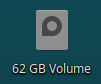
- An icon will appear on the desktop with a label representing the removable drive.
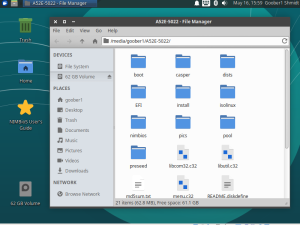
- A file manager window will appear on the desktop.
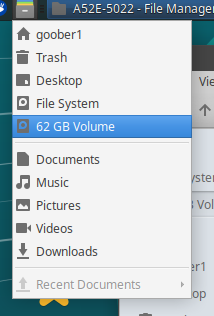
- A new entry will appear under the “Places” application on the panel.
- To eject media, do one of the following:
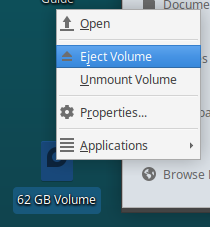
- Right-click on the desktop device icon and select “Eject Volume”.
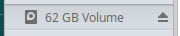
- Click on the eject button next to the device in the file manager window.
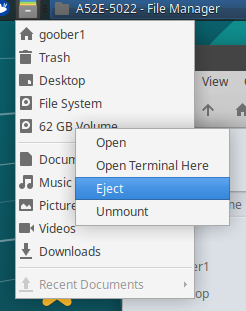
- In the “Places” drop-down menu, right-click on the device in the list. A pop-up menu will appear, from which you can select “Eject”.
- NOTE: I don't care what anyone has ever told you, if you care about your files you should ALWAYS eject a USB drive before unplugging it!
Consider yourself warned.


Remote SFTP File Access
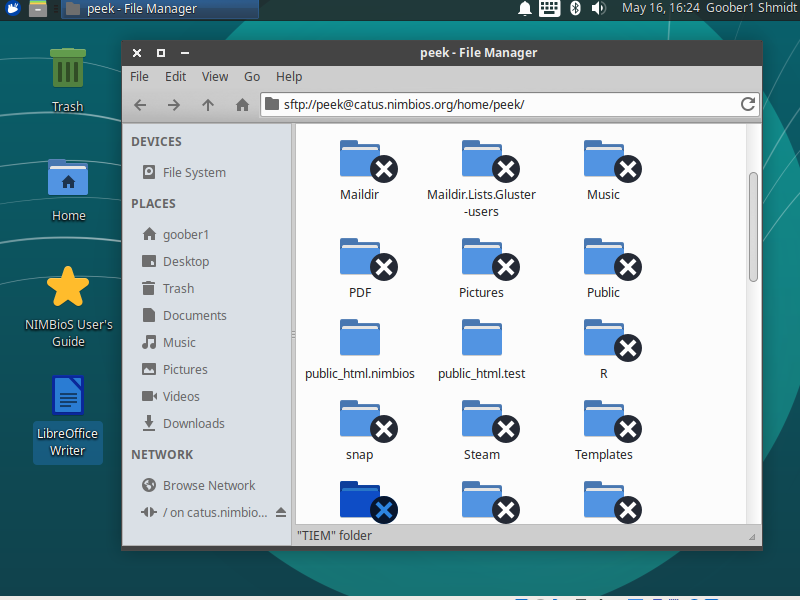
- To connect your file manager to a remote SFTP server, enter “sftp://<username>@<hostname>/<dir>” into the location bar. For instance, here I have connected to “sftp://peek@catus.nimbios.org/home/peek” to access my home area on catus.nimbios.org.
NOTE: On NIMBioS systems, user home areas are always located at /home/<username>.
- Similar to removable media, when you connect to a remote SFTP server, a new entry will appear in the left panel of the file manager. To disconnect, click the eject button.



Logging Out
You can log out by clicking on your name in the upper-right corner of the screen, and selecting “Log Out…” from the drop-down menu that appears.

This Is Different! I Fear Change! Make It Go Back!
The older Ubuntu desktop looked like this:

The new one looks very different. What happened!?!?
For the last several years Canonical, makers of Ubuntu, had their sights set on carving out a piece of the Internet of Things pie. They wanted to produce Ubuntu phones, tablets, and televisions in addition to servers, workstations, and laptops. And to power it all, they wanted a single, simple, consistent user interface. That's why they created the Unity desktop (pictured above). But now things have changed. Canonical has conceded that between Apple and Android, their target market is pretty much sewn up tight. It just takes way too much effort for far too little return on investment. So Canonical has moved back to doing what they do best: Servers and workstations. (And clouds. Lots of clouds.) In this transition, Canonical decided to stop spending effort on developing and maintaining a desktop environment when there were already many nice desktop environments already available to choose from.
I Still Don't Like It!
The great thing about Linux is it's modularity and the fact that it's infinitely customizable. You can change nearly everything about the look and feel of your desktop just by playing around with the settings. In fact, you can make it look and behave a lot like the old Unity if you really want to.
For Further Reading
Disclaimer
- NIMBioS IT staff will not take responsibility for your personal machine. The reader is expected to know how to administrate his or her own machine.
- The documentation above is merely for guidance. Menus, options, and commands presented may not match the reader's particular operating system, software, or versions.
- None of these documents have a brain. Readers are expected to provide their own.


