
Table of Contents
Printer Setup
A common question for the IT staff is how to gain access to the NIMBioS printers. This question is presented to us most often by short-term visitors and workgroup/workshop guests. Because this is such a frequent question, this page has been dedicated to answering it.
Required Information
Below is a table with all the important information that you will need to know to install these printers on your personal machine.
| Printer Location | Printer Make/Model | IP Address |
|---|---|---|
| BLN-416 | TOSHIBA eSTUDIO-453 | 160.36.132.175 |
| BLN-416 | HP LaserJet M2727nf MFP | 160.36.132.183 |
| BLN-416 | Xerox Phaser 8560DN | 160.36.132.50 |
The following printers are available in postdoc suites:
| Printer Location | Printer Make/Model | IP Address |
|---|---|---|
| BLN-408 | HP LaserJet P2055dn | 160.36.132.49 |
| BLN-409 | HP LaserJet P2055dn | 160.36.132.141 |
Additional printers:
| Printer Location | Printer Make/Model | IP Address |
|---|---|---|
| HOS-103 | HP LaserJet P2055dn | 160.36.46.77 |
NOTE: The printer location includes a 3-character building designation as specified by the university. You can see all the building designations on UT's map page here. This building designation is used by the NIMBioS IT staff when naming printers, so that users can find a printer near them quickly and easily.
BLN-416 TOSHIBA eSTUDIO 453
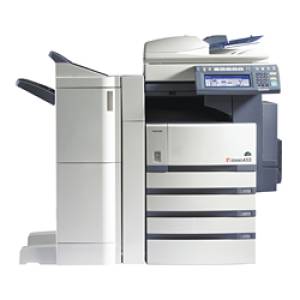
Printer Location: BLN-416
Printer Make/Model: TOSHIBA eSTUDIO 453
Printer IP Address: 160.36.132.175
Installation Instructions
Windows XP
- Click:
Start>Printers and faxes - Click:
Add a printer - Click:
Next - Click:
Local printer attached to this computer - Click:
Next - Select:
Create a new port - Type of port:
Standard TCP/IP Port - Click:
Next - Click:
Next - Printer Name or IP Address:
160.36.132.175 - Click:
Next - Click:
Finish - Manufacturer:
TOSHIBA - Printers:
TOSHIBA s-STUDIO Universal PCL6
(NOTE: If your Windows XP operating system does not have this printer, then click onWindows Updateto update your printer drivers.) - Click:
Next - Printer name:
BLN-416 TOSHIBA e-STUDIO 453 - Click:
Next - Do you want to print a test page: Yes
- Click:
Next - Click:
Finish
Windows 7
- NOTE: If you are replacing/repairing a faulty previous installation of this printer, be sure to remove the old printer first
- Click:
Start>Devices and Printers - Right-click on the previous TOSHIBA printer device
- Select:
Remove Device - NOTE: If the device does not disappear from the list of printers and faxes, do not continue, but call on NIMBioS IT for assistance.
- Obtain the appropriate driver for your machine
- First, check to see if your system is 32-bit or 64-bit:
- Click:
Start>Computer - Click on
System properties - Look for
System typein the properties list
- Extract the ZIP file that you just downloaded:
- Right-click on the ZIP file
- Select
Extract All…from the pop-up menu - Click
Extract - Important: Remember this directory location on your system.
- Click:
Start>Devices and Printers - Click:
Add a printer - Click:
Add a network, wireless or Bluetooth printer - Click:
The printer that I want isn't listed - Select:
Add a printer using a TCP/IP address or hostname - Click:
Next - Device type:
Autodetect - Hostname or IP address:
160.36.132.175 - Make sure that
Query the printer and automatically select the driver to useis unchecked - Click:
Next - Click:
Have Disk… - In the “Install From Disk” pop-up window, click:
Browse… - In the “Locate File” window that appears, navigate to the directory where you extracted the driver ZIP file
(You can probably find it under the “Recent Places” location just to the left in the same window.) - Select:
eS4ex2
(There should only be one file listed.) - Click:
Open - Click:
OK - In the “Add Printer” window, you should see “TOSHIBA e-STUDIO4520CSeriesPCL6” listed under “Printers”
Click:Next - Printer name:
BLN-416 - TOSHIBA e-STUDIO 453 - Click:
Next - Click:
Print a test page, check that a test page really did print on the printer - Click:
Finish
OSX 10.x.x
- Click: The Apple icon (top-left corner)
- Click:
System Preferences… - Click:
Print & Fax - If necessary, click the lock to make changes, and enter your password
- Click:
+ - Click:
IP - Protocol:
Line Printer Daemon - LPD - Address:
160.36.132.175 - Name:
BLN-416 TOSHIBA e-STUDIO-453 - Print Using:
TOSHIBA e-ST450/453 Series - Click:
Add - Finisher:
Multi-Position Stapler - Drawers:
Not Installed - Click:
Continue
BLN-416 HP LaserJet M2727nf MFP
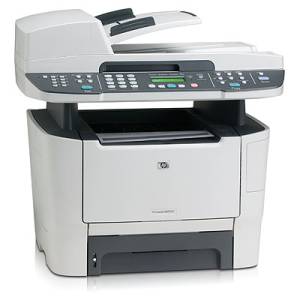
Printer Location: BLN-416
Printer Make/Model: HP LaserJet M2727nf MFP
Printer IP Address: 160.36.132.183
Installation Instructions
Windows XP
NOTE: Windows XP does not contain the proper print drivers for this printer by default. Since it is the goal of most visitors to simply get “up and printing”, the instructions below only cover how to set up a generic PCL printer driver for this printer.
- Click:
Start>Printers and faxes - Click:
Add a printer - Click:
Next - Click:
Local printer attached to this computer - Click:
Next - Select:
Create a new port - Type of port:
Standard TCP/IP Port - Click:
Next - Click:
Next - Printer Name or IP Address:
160.36.132.183 - Click:
Next - Click:
Finish - Manufacturer:
Generic - Printers:
35PPM PCL6
(NOTE: If your Windows XP operating system does not have this printer, then click onWindows Updateto update your printer drivers.) - Click:
Next - Printer name:
BLN-416 TOSHIBA e-STUDIO 453 - Click:
Next - Do you want to print a test page: Yes
- Click:
Next - Click:
Finish
By using a generic printer driver, users can begin using the printer in minutes. However, by not using the official HP driver some functionality will be missed when using this printer. If you would like to use the official HP driver, you can find download and installation instructions here.
Windows 7
- Click:
Start>Devices and Printers - Click:
Add a printer - Click:
Add a network, wireless or Bluetooth printer - Click:
The printer that I want isn't listed - Select:
Add a printer using a TCP/IP address or hostname - Click:
Next - Device type:
Autodetect - Hostname or IP address:
160.36.132.183 - Make sure that
Query the printer and automatically select the driver to useis checked - Click:
Next - Printer name:
BLN-416 HP LaserJet M2727nf MFP - Click:
Next - Click:
Print a test page, check that a test page really did print on the printer - Click:
Finish
OSX 10.x.x
- Click: The Apple icon (top-left corner)
- Click:
System Preferences… - Click:
Print & Fax - If necessary, click the lock to make changes, and enter your password
- Click:
+ - Click:
IP - Protocol:
Line Printer Daemon - LPD - Address:
160.36.132.183 - Name:
BLN-416 HP LaserJet M2727nf MFP - Print Using:
HP LaserJet M2727 MFP Series - Click:
Add - Click:
Continue
BLN-416 Xerox Phaser 8560DN
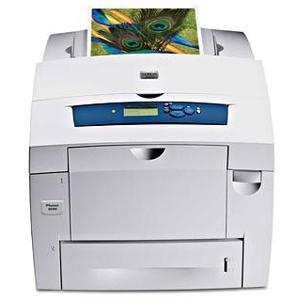
Printer Location: BLN-416
Printer Make/Model: Xerox Phaser 8560DN
Printer IP Address: 160.36.132.50
Installation Instructions
Windows XP
NOTE: Windows XP does not contain the proper print drivers for this printer by default. Since it is the goal of most visitors to simply get “up and printing”, the instructions below only cover how to set up a generic PCL printer driver for this printer.
- Click:
Start>Printers and faxes - Click:
Add a printer - Click:
Next - Click:
Local printer attached to this computer - Click:
Next - Select:
Create a new port - Type of port:
Standard TCP/IP Port - Click:
Next - Click:
Next - Printer Name or IP Address:
160.36.132.50 - Click:
Next - Click:
Finish - Manufacturer:
Generic - Printers:
MS Publisher Color Printer
(NOTE: If your Windows XP operating system does not have this printer, then click onWindows Updateto update your printer drivers.) - Click:
Next - Printer name:
BLN-416 Xerox Phaser 8560DN - Click:
Next - Do you want to print a test page: Yes
- Click:
Next - Click:
Finish
By using a generic printer driver, users can begin using the printer in minutes. However, by not using the official Xerox driver some functionality will be missed when using this printer. If you would like to use the official Xerox driver, you can find download and installation instructions here.
Windows 7
- Click:
Start>Devices and Printers - Click:
Add a printer - Click:
Add a network, wireless or Bluetooth printer - Click:
The printer that I want isn't listed - Select:
Add a printer using a TCP/IP address or hostname - Click:
Next - Device type:
Autodetect - Hostname or IP address:
160.36.132.50 - Make sure that
Query the printer and automatically select the driver to useis checked - Click:
Next - Manufacturer:
Xerox - Printers:
Xerox Phaser 8560DN
(NOTE: If your Windows 7 operating system does not have this printer, then click onWindows Updateto update your printer drivers.) - Printer name:
BLN-416 Xerox Phaser 8560DN - Click:
Next - Click:
Print a test page, check that a test page really did print on the printer - Click:
Finish
OSX 10.x.x
- Click: The Apple icon (top-left corner)
- Click:
System Preferences… - Click:
Print & Fax - If necessary, click the lock to make changes, and enter your password
- Click:
+ - Click:
IP - Protocol:
Line Printer Daemon - LPD - Address:
160.36.132.50 - Name:
BLN-416 Xerox Phaser 8560DN - Print Using:
Generic PostScript Printer - Click:
Add
BLN-408 HP LaserJet P2055dn
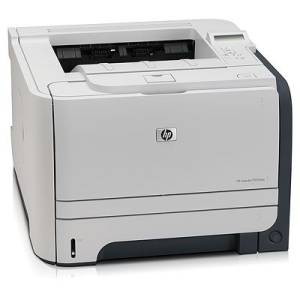
Printer Location: BLN-408
Printer Make/Model: HP LaserJet P2055dn
Printer IP Address: 160.36.132.49
Installation Instructions
Windows XP
NOTE: Windows XP does not contain the proper print drivers for this printer by default. Since it is the goal of most visitors to simply get “up and printing”, the instructions below only cover how to set up a generic PCL printer driver for this printer.
- Click:
Start>Printers and faxes - Click:
Add a printer - Click:
Next - Click:
Local printer attached to this computer - Click:
Next - Select:
Create a new port - Type of port:
Standard TCP/IP Port - Click:
Next - Click:
Next - Printer Name or IP Address:
160.36.132.49 - Click:
Next - Click:
Finish - Manufacturer:
Generic - Printers:
35PPM PS
(NOTE: If your Windows XP operating system does not have this printer, then click onWindows Updateto update your printer drivers.) - Click:
Next - Printer name:
BLN-408 HP LaserJet P2055dn - Click:
Next - Do you want to print a test page: Yes
- Click:
Next - Click:
Finish
By using a generic printer driver, users can begin using the printer in minutes. However, by not using the official Xerox driver some functionality will be missed when using this printer. If you would like to use the official Xerox driver, you can find download and installation instructions here.
Windows 7
- Click:
Start>Devices and Printers - Click:
Add a printer - Click:
Add a network, wireless or Bluetooth printer - Click:
The printer that I want isn't listed - Select:
Add a printer using a TCP/IP address or hostname - Click:
Next - Device type:
Autodetect - Hostname or IP address:
160.36.132.49 - Make sure that
Query the printer and automatically select the driver to useis checked - Click:
Next - Manufacturer:
Xerox - Printers:
Xerox Phaser 8560DN
(NOTE: If your Windows 7 operating system does not have this printer, then click onWindows Updateto update your printer drivers.) - Printer name:
BLN-408 HP LaserJet P2055dn - Click:
Next - Click:
Print a test page, check that a test page really did print on the printer - Click:
Finish
OSX 10.x.x
- Click: The Apple icon (top-left corner)
- Click:
System Preferences… - Click:
Print & Fax - If necessary, click the lock to make changes, and enter your password
- Click:
+ - Click:
IP - Protocol:
Line Printer Daemon - LPD - Address:
160.36.132.49 - Name:
BLN-408 HP LaserJet P2055dn - Print Using:
Generic PostScript Printer - Click:
Add
BLN-409 HP LaserJet P2055dn
Printer Location: BLN-409
Printer Make/Model: HP LaserJet P2055dn
Printer IP Address: 160.36.132.141
Installation Instructions
Windows XP
NOTE: Windows XP does not contain the proper print drivers for this printer by default. Since it is the goal of most visitors to simply get “up and printing”, the instructions below only cover how to set up a generic PCL printer driver for this printer.
- Click:
Start>Printers and faxes - Click:
Add a printer - Click:
Next - Click:
Local printer attached to this computer - Click:
Next - Select:
Create a new port - Type of port:
Standard TCP/IP Port - Click:
Next - Click:
Next - Printer Name or IP Address:
160.36.132.141 - Click:
Next - Click:
Finish - Manufacturer:
Generic - Printers:
35PPM PS
(NOTE: If your Windows XP operating system does not have this printer, then click onWindows Updateto update your printer drivers.) - Click:
Next - Printer name:
BLN-409 HP LaserJet P2055dn - Click:
Next - Do you want to print a test page: Yes
- Click:
Next - Click:
Finish
By using a generic printer driver, users can begin using the printer in minutes. However, by not using the official Xerox driver some functionality will be missed when using this printer. If you would like to use the official Xerox driver, you can find download and installation instructions here.
Windows 7
- Click:
Start>Devices and Printers - Click:
Add a printer - Click:
Add a network, wireless or Bluetooth printer - Click:
The printer that I want isn't listed - Select:
Add a printer using a TCP/IP address or hostname - Click:
Next - Device type:
Autodetect - Hostname or IP address:
160.36.132.141 - Make sure that
Query the printer and automatically select the driver to useis checked - Click:
Next - Manufacturer:
Xerox - Printers:
Xerox Phaser 8560DN
(NOTE: If your Windows 7 operating system does not have this printer, then click onWindows Updateto update your printer drivers.) - Printer name:
BLN-409 HP LaserJet P2055dn - Click:
Next - Click:
Print a test page, check that a test page really did print on the printer - Click:
Finish
OSX 10.x.x
- Click: The Apple icon (top-left corner)
- Click:
System Preferences… - Click:
Print & Fax - If necessary, click the lock to make changes, and enter your password
- Click:
+ - Click:
IP - Protocol:
Line Printer Daemon - LPD - Address:
160.36.132.141 - Name:
BLN-409 HP LaserJet P2055dn - Print Using:
Generic PostScript Printer - Click:
Add
HOS-103 HP LaserJet P2055dn
Printer Location: HOS-103
Printer Make/Model: HP LaserJet P2055dn
Printer IP Address: 160.36.46.77
Installation Instructions
Windows XP
NOTE: Windows XP does not contain the proper print drivers for this printer by default. Since it is the goal of most visitors to simply get “up and printing”, the instructions below only cover how to set up a generic PCL printer driver for this printer.
- Click:
Start>Printers and faxes - Click:
Add a printer - Click:
Next - Click:
Local printer attached to this computer - Click:
Next - Select:
Create a new port - Type of port:
Standard TCP/IP Port - Click:
Next - Click:
Next - Printer Name or IP Address:
160.36.46.77 - Click:
Next - Click:
Finish - Manufacturer:
Generic - Printers:
35PPM PS
(NOTE: If your Windows XP operating system does not have this printer, then click onWindows Updateto update your printer drivers.) - Click:
Next - Printer name:
HOS-103 HP LaserJet P2055dn - Click:
Next - Do you want to print a test page: Yes
- Click:
Next - Click:
Finish
By using a generic printer driver, users can begin using the printer in minutes. However, by not using the official Xerox driver some functionality will be missed when using this printer. If you would like to use the official Xerox driver, you can find download and installation instructions here.
Windows 7
- Click:
Start>Devices and Printers - Click:
Add a printer - Click:
Add a network, wireless or Bluetooth printer - Click:
The printer that I want isn't listed - Select:
Add a printer using a TCP/IP address or hostname - Click:
Next - Device type:
Autodetect - Hostname or IP address:
160.36.46.77 - Make sure that
Query the printer and automatically select the driver to useis checked - Click:
Next - Manufacturer:
Xerox - Printers:
Xerox Phaser 8560DN
(NOTE: If your Windows 7 operating system does not have this printer, then click onWindows Updateto update your printer drivers.) - Printer name:
HOS-103 HP LaserJet P2055dn - Click:
Next - Click:
Print a test page, check that a test page really did print on the printer - Click:
Finish
OSX 10.x.x
- Click: The Apple icon (top-left corner)
- Click:
System Preferences… - Click:
Print & Fax - If necessary, click the lock to make changes, and enter your password
- Click:
+ - Click:
IP - Protocol:
Line Printer Daemon - LPD - Address:
160.36.46.77 - Name:
HOS-103 HP LaserJet P2055dn - Print Using:
Generic PostScript Printer - Click:
Add
Disclaimer
- NIMBioS IT staff will not take responsibility for your personal machine. The reader is expected to know how to administrate his or her own machine.
- The documentation above is merely for guidance. Menus, options, and commands presented may not match the reader's particular operating system, software, or versions.
- None of these documents have a brain. Readers are expected to provide their own.


